LO Products · Vision Pro AR

presentAR – 3D models in augmented reality on Apple Vision Pro

Download free on the App Store
presentAR: 3D model in augmented reality on Apple Vision Pro

Free

no subscription,
no in-app purchases

No Backend

your data
stays with you

8 Formats

USDZ, glTF, FBX,
OBJ, STL and more

Ready to Go

sample geometry
included

What is presentAR?

Some design decisions can't be made properly on a screen. You need to walk around them, see them in real space and compare them with what's already there.

Whether you're examining components in their real environment, evaluating different trim variants or simply want to impress customers who haven't seen your product yet – presentAR brings your 3D data to life. Thanks to Apple Vision Pro and augmented reality: at real scale, in real space, next to real objects.

20+ years of XR experience.
One product.

presentAR brings together the experience gained from numerous headset client projects at LO Products in a product of our own. For years we have been developing custom VR, AR and MR applications for a wide range of industries and devices – presentAR is our technology demonstrator for Apple Vision Pro and shows what AR can do.

Free. Period.

presentAR is completely free for personal use – no subscription, no in-app purchases, no hidden costs. With our technology demonstrator we want to show what we are capable of.

Up and running in no time.

Included sample geometry lets you get started right away, without having to prepare your own models first.

Built-in tutorials familiarize you with the key features directly in the app.

Download presentAR for free now and experience your 3D data where decisions are really made – in real space.

Documentation

Looking at your (inner) palms opens the menus. Looking at a menu item highlights it, and a pinch gesture (touching index finger and thumb) triggers it.

Controls | Independent of Menus

Scale

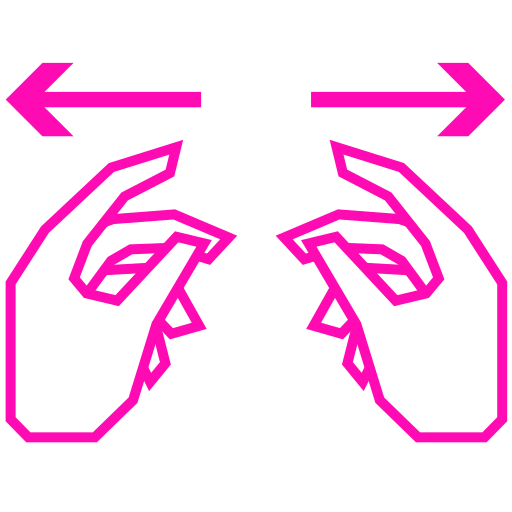
A pinch gesture with the middle finger and thumb of the right hand opens the value display. The same gesture with the left hand triggers the feature. The distance between both hands changes the value.

Rotate

A pinch gesture with the middle finger and thumb of the left hand opens the value display. The same gesture with the right hand triggers the feature. A circular motion with both hands rotates around the vertical axis.

Teleport

Making a fist with the right hand shows the indicator, which is positioned by moving your arm. Opening the fist triggers the feature and moves you to that position.

Controls | Secondary Hand Menu

Import

For importing data, presentAR uses the familiar macOS file browser dialog along with the drives and data sources already set up there – whether local, via SMB, WebDAV, iCloud or your preferred cloud provider. There is no proprietary backend and no need for an additional cloud connection. Processing your data is entirely in your hands: you don't have to trust any operator or platform you have no control over.

Supported file formats:

  • USDZ*
  • glTF/GLB*
  • FBX*
  • OBJ
  • STL, PLY, 3MF, DAE (TriLib)

* Support animations and variants

Your data always stays under your control.

Slice

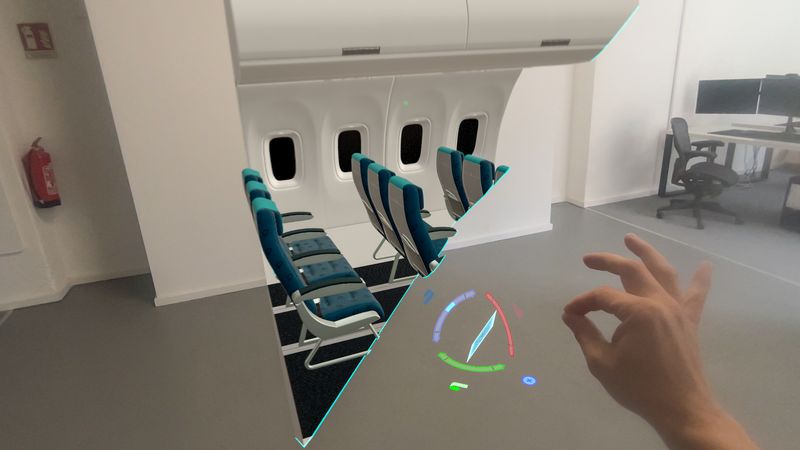
Creates a section plane on the object or for the entire scene. Its position and orientation can be controlled either by hand tracking or with a gizmo.

Laser Pointer

Tool for drawing attention to a specific point.

Teleport

Turns the feature on/off.

Settings

Primary Hand

Sets your default handedness (left-handed/right-handed).

Tutorial

Reactivates tutorial mode.

HDRI Custom Map

Lets you load an IBL file that can be used to light the scene.

IBL file specifications are available in Best Practices.

Controls | Primary Hand Menu

Edit Object

Shows the name of the current menu and lets you switch between modes (EDIT OBJECT / EDIT SCENE / PRESENTATION MODE).

Move
  • Horizontal: Moves components horizontally.
  • Vertical: Moves components vertically.
  • Free: Moves components along all axes.
  • Free + Rotation: Moves and rotates components in all directions.
Delete

The pinch gesture deletes the selected component from the scene. Deletion only takes place once the circle of the progress indicator (red outline) is fully closed, so the gesture must be held until the end.

Mirror (H/V)
  • Mirror H: Mirrors components horizontally.
  • Mirror V: Mirrors components vertically.
Variants

Switches between included variants, which can be added to the scene via the USDZ, FBX and glTF/GLB file formats. For more information see Best Practices.

Animation

glTF/GLB and FBX files can contain animations, which can be played via this menu item.

Edit Scene

Shows the name of the current menu and lets you switch between modes (EDIT OBJECT / EDIT SCENE / PRESENTATION MODE).

Move
  • Horizontal: Moves the scene horizontally.
  • Vertical: Moves the scene vertically.
  • Free: Moves the scene along all axes.
  • Free + Rotation: Moves and rotates the scene in all directions.
Delete

The pinch gesture deletes all components from the scene. Deletion only takes place once the circle of the progress indicator (red outline) is fully closed, so the gesture must be held until the end.

Room Light / HDRI Mapname / HDRI Custom

Selects the lighting model. Room Light corresponds to the lighting that Apple Vision Pro has derived from the real room using its cameras.

SUN

Activates the UI menu item for controlling the omnidirectional light source.

Reset Transformations

Components with distant pivot points are given an additional local coordinate system on import to make them easier to handle.

This menu item resets all modified transformations, so that components sharing the same pivot point are aligned correctly with each other again.

Presentation Mode

This mode hides editing functions that are not needed during the actual presentation.

Tutorials

Best Practices

Optimization guide for visionOS on Apple Vision Pro – from polycount and draw calls to textures, UV layouts, PBR materials, and animations. Reference values differ between the M2 generation (2024) and the M5 generation (from Oct. 2025).

Target Platform

Vision Pro renders stereoscopically on two micro-OLED displays (approx. 3,660 × 3,200 effective pixels each). Fill rate and GPU load are therefore higher than on a typical mobile device. Polycount budgets from desktop or offline rendering pipelines cannot be carried over without adjustment.

Hardware: M2 vs. M5

Both generations use 16 GB of unified memory and the R1 chip for sensor fusion. For asset budgets: plan conservatively on M2, and use the additional headroom on M5 for geometry, textures and effects.

Feature Vision Pro (M2, 2024) Vision Pro (M5, from Oct. 2025)
System on a chip M2 + R1 M5 + R1
CPU 8 cores (4 performance + 4 efficiency) 10 cores (4 super + 6 efficiency)
GPU 10 cores 10 cores incl. ray tracing & mesh shading
Memory bandwidth approx. 100 GB/s approx. 153 GB/s
Display refresh rate 90 / 96 / 100 Hz up to 120 Hz
Pixel rendering Base resolution approx. +10% rendered pixels
3D budget (in practice) conservative, stable 90 Hz higher limits, 90–120 Hz depending on scene

Import Formats

USDZ and GLB/glTF (uncompressed) are supported for import – including material variant switching. FBX files can be imported; for tiling textures, the object name must contain the tag TILEx.x. OBJ, STL, PLY, 3MF and DAE can also be imported, but with limited support for materials, textures, animations and other scene data.

Polycount Limits

Apple distinguishes between the Shared Space (windows, volumes) and a Full Space (immersive). The amount of geometry you can use depends on the display context:

Context Description M2 (tris, scene) M5 (tris, scene)
Volumetric window / 3D preview Limited field of view, often with UI 30,000–120,000 50,000–200,000
Shared Space – large scene Part of the room visible, user moves little 150,000–350,000 250,000–500,000
Full Immersive Space 360° environment, highest load 300,000–500,000 400,000–800,000

Draw Calls & Object Count

Draw calls are a major constraint for XR applications on visionOS – the limits are well below those of desktop applications. Actual performance depends on several factors and can vary from scene to scene.

Metric M2 M5
Draw calls < 100–200 < 150–300
Material variants per room < 20 < 30
Instancing Instance repeating objects

All figures are guidelines – a scene's performance depends on polycount, texture resolution, draw calls, overdraw, light sources and other factors. Rule of thumb: as much as necessary, as little as possible.

Texture Resolution (PBR)

Make sure to use proper padding and consistent texel density. Normal maps should be tangent-space normal maps using the OpenGL convention. Texture dimensions should be a power of two.

  • Baked materials per object: 2048² or 4096²
  • Tiling textures: 256²–512²
  • The optimal resolution depends on the number of textures in the scene

UV Unwrap

Minimal UV distortion and consistent texel density are particularly important. This keeps detail quality consistent across the entire model – no areas appear blurry or overly detailed.

PBR Materials

For export to visionOS, all materials must be converted to the supported PBR maps: albedo (color), roughness, metallic, normal (OpenGL), opacity and optionally ambient occlusion or emission. Anything else is often not exported correctly and can lead to rendering errors.

IBL (Image-Based Lighting)

Requirements for HDR and OpenEXR environment files for HDRI Custom Map.

Preferred format: Radiance HDR

  • File format: .hdr
  • Projection: Equirectangular
  • Aspect ratio: 2:1
  • Recommended resolution: 4096 × 2048 pixels
  • Color space: Linear HDR color values

Alternative format: OpenEXR

  • File format: .exr
  • Image structure: Single-part, flat scanline
  • Channels: Separate R, G, and B channels
  • Pixel type: Half or float, linear
  • Compression: ZIP or PIZ
  • Projection: Equirectangular
  • Aspect ratio: 2:1
  • Recommended resolution: 4096 × 2048 pixels

Content requirements

  • The file must contain a complete, seamless 360° environment with sky and ground.
  • User interfaces, logos, watermarks, or text overlays must not be embedded in the image.
  • A separate alpha mask is not required.

Variants

All variants are mapped to the same runtime and UI flow for interaction. App-specific hierarchy variants are detected via *_SWITCH; native format variants are connected accordingly on import.

*_SWITCH → Variant A / Variant B / Variant C

GLB / glTF – native material variant path

GLB and glTF natively support material variants through the ratified Khronos extension KHR_materials_variants. Variant names are defined in the glTF asset; mesh primitives specify which material belongs to which variant. Geometry can be shared and does not need to be duplicated for pure material variants.

presentAR reads these variants on import and maps them to the shared variant and UI flow. For true geometry variants, the presentAR-specific SWITCH hierarchy remains available as an additional option.

Example: Chair → KHR_materials_variants → Red | Blue | Leather

USDZ – native path

USDZ is the package format; the variant system itself comes from OpenUSD. VariantSets are the native USD mechanism for switchable alternatives of a prim. They are not limited to materials: a variant can change material bindings, geometry, properties, or entire sub-hierarchies.

Example: Chair → VariantSet "Material" → Red | Blue | Leather

Native USDZ variants therefore do not require a presentAR-specific texture naming convention. The previous detection via texture suffixes can optionally remain as a legacy/fallback path.
Animations

Only one armature may be used per file. Each animation must be created as a separate action and then organized in an NLA track.

Third-Party Licenses

Overview of components used in presentAR and their associated licenses.

Contact

Questions about presentAR, praise, feedback, commercial use – or need technical support? We look forward to hearing from you.